Do these 3 things before closing this tab:
1Clear out junk files and repair common Windows errors2Fix the driver behind crashes, sound loss and screen glitches3Repair Windows errors before they cause bigger problemsInferse is reader-supported. When you buy through links on our site, we may earn an affiliate commission. As an Amazon Associate I earn from qualifying purchases. Learn more
If you’re like many Windows 10 users, you’ve probably asked, “How do I speed up my laptop startup?” Whether you’re starting up your laptop for a quick check of emails or preparing for an important project, slow boot times can be frustrating. Fortunately, there are several practical steps you can take to speed up your laptop’s startup process and get to work faster. In this blog, we will cover the most effective methods to improve your laptop’s startup speed, helping you save time and boost productivity.
After reducing startup items, Outbyte PC Repair can scan Windows settings and clean temporary files that may lengthen laptop startup.
Disable Unnecessary Startup Programs
One of the primary reasons for a sluggish startup on Windows 10 is the large number of programs that load automatically when your laptop starts. These programs run in the background, consuming resources and slowing down the boot process. Disabling unnecessary startup programs is one of the simplest and most effective ways to speed up your laptop startup.
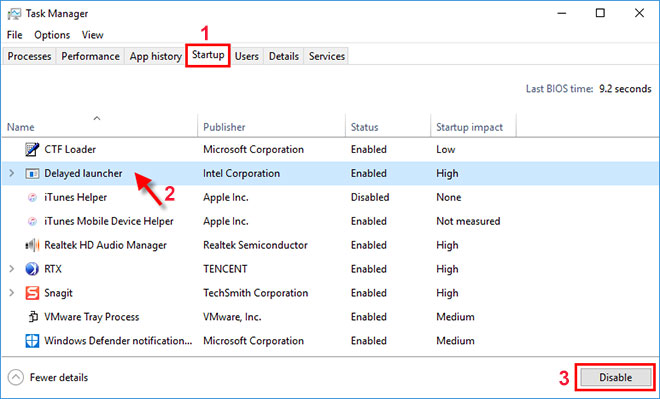 How to Disable Startup Programs:
Right-click the Taskbar and select Task Manager.
Navigate to the Startup tab.R
View the list of programs that start automatically and identify the ones you don’t need.
Right-click on the unnecessary programs and select Disable.
Be cautious not to disable essential programs, such as antivirus software or system utilities, as doing so could affect your laptop’s security and performance.
Upgrade to a Solid-State Drive (SSD)
If your laptop is still using a traditional Hard Disk Drive (HDD), upgrading to a Solid-State Drive (SSD) can dramatically improve your laptop’s startup time. SSDs are much faster than HDDs, providing quicker read and write speeds that will result in a faster boot time. An SSD can improve not only startup speed but also overall system performance, from opening applications to transferring files. While upgrading to an SSD may require some initial investment, the difference in speed and efficiency is worth it.
Shopping ad

- SPEED UP COMPUTER: The fanxiang 1TB SSD 2.5 Inch SATA SSD achieves blazing read and write speeds of 520MB/s, facilitating rapid file and data transfers
- UPGRADE YOUR COMPUTER: Compared to HDDs, the 1TB SATA SSD boots up at least 50% faster, enabling instant productivity or gaming sessions
- LONG-LASTING DURABILITY: The 2.5 SATA SSD 1TB incorporates 3D NAND TLC chips, offering a longer lifespan in writes compared to QLC, ensuring a more reliable data storage solution
- EXTENSIVE COMPATIBILITY: The S101 1TB SATA III SSD is compatible with desktops, laptops, all-in-one PCs, supporting various operating systems like Windows, Linux, and Mac OS, meeting the needs of diverse devices
- 3-Year Service: Fanxiang S101 1TB SSD solid state drive provides 3 years after-sales service and lifetime technical support. If you have any questions, please contact us and we will sincerely and professionally solve the problem for you
How to Upgrade to an SSD:
If you’re comfortable with DIY upgrades, you can purchase an SSD, create a backup of your data, and clone your current hard drive onto the new SSD. Alternatively, you can take your laptop to a professional for the upgrade.
Adjust Power Settings for Faster Startup
Another easy way to speed up your laptop’s startup is to tweak your power settings. By adjusting the power plan to “High Performance,” you can ensure your laptop runs optimally during boot time.
The Tool Desk
Outbyte PC Repair FREEClear out junk files and repair common Windows errorsFree Scan →Outbyte Driver Updater FREEScan for outdated or missing drivers - takes under a minuteDriver Scan →How to Change Power Settings:
Press Windows + X and select Power Options.
Under Related Settings, click Additional Power Settings.
Select High Performance (note that this option may not appear on all laptops).
This setting prevents your laptop from throttling performance in favor of energy savings, which can result in a quicker boot time.
Clean Up Your System Using Disk Cleanup
Over time, your laptop accumulates temporary files, cached data, and other unnecessary files that can slow down your system. Running the built-in Disk Cleanup tool can help remove these files and free up space, improving both system performance and startup speed.
How to Run Disk Cleanup: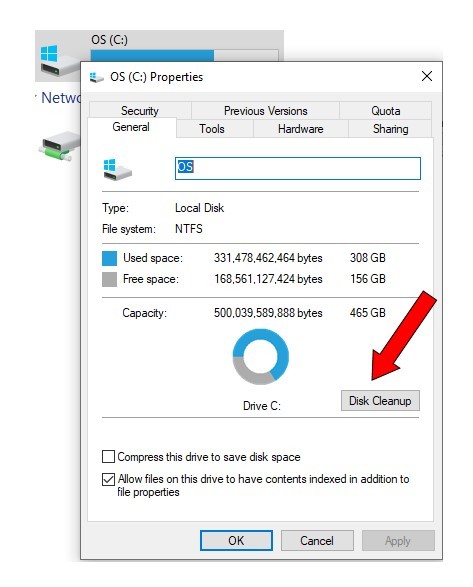
Press Windows + S and type “Disk Cleanup.”
Select the Disk Cleanup app.
Choose the drive you want to clean (usually the C: drive).
Select the types of files to delete (temporary files, system files, etc.), then click OK and Delete Files.
This process will take some time, but it will clear up space and speed up your laptop startup.
Shopping ad

- Upgrade your laptop or desktop computer and feel the difference with super-fast OS boot times and application loads
- Exceptional performance offering up to 535MB/s seq. Read and 500MB/s seq. Write speeds
- Superior performance as compared to traditional hard drives (HDD)
- Ultra-low power consumption
- Backwards compatible with SATA II 3GB/sec
Update Windows and Drivers Regularly
Keeping your Windows 10 operating system and device drivers up to date is another important step in improving startup speed. Updates often include performance improvements and bug fixes that can make your laptop boot faster.
How to Check for Windows Updates:
Go to Settings > Update & Security.
Click Check for updates and install any available updates.
How to Update Drivers:
Right-click the Start button and select Device Manager.
Expand the categories to find hardware that may require updating (e.g., display adapters, network adapters).
Right-click on the hardware and select Update driver.
Choose Search automatically for updated driver software.
This ensures that your system has the latest drivers and updates, leading to optimal startup performance.
Turn Off Fast Startup
Windows 10 comes with a feature called Fast Startup, which is intended to speed up boot times by hibernating part of the operating system during shutdown. While this may sound like a great idea, it sometimes causes issues and can actually slow down startup time.
If you’re wondering, “How do I speed up my laptop startup Windows 10 by disabling Fast Startup?” here’s how to do it:
Outdated Drivers Are Slowing You Down
One free scan finds every outdated or missing driver and matches the right update for your exact hardware.Free scan · exact hardware matchPC Slower Than It Used to Be?
A free scan shows the junk files, broken settings and background clutter dragging Windows down - then fixes them in one click.Free scan · Windows 10 & 11Shopping ad
- Upgrade your laptop or desktop computer and feel the difference with super-fast OS boot times and application loads
- Exceptional performance offering up to 550MB/s seq. Read and 500MB/s seq. Write speeds
- Superior performance as compared to traditional hard drives (HDD)
- Ultra-low power consumption
- Backwards compatible with SATA II 3GB/sec
How to Disable Fast Startup:
Go to Control Panel > Power Options > Choose what the power buttons do.
Click on Change settings that are currently unavailable.
Scroll down and uncheck Turn on fast startup under Shutdown settings.
Click Save changes.
Disabling this feature can sometimes improve boot times, especially if your laptop encounters problems with fast startup.
Use a System Optimizer Tool
For those who want a more automated solution, third-party system optimization tools can help. These tools clean up junk files, remove startup bloatware, and offer other optimizations that can improve your laptop’s performance and startup time.
Some popular tools include:
CCleaner: Helps clean up system files and manage startup programs.
Advanced SystemCare: Provides a variety of optimization features, including startup acceleration.
IObit Uninstaller: Helps you remove bloatware and unwanted programs.
Before using any of these tools, be sure to back up your data to avoid potential issues.
Reinstall Windows 10 (Last Resort)
If all else fails, and your laptop still takes too long to boot, a clean installation of Windows 10 can sometimes be the best solution. This will give you a fresh start, removing any issues that may have accumulated over time, including slow startup.
Free tools Windows power users keep installed
One-click scans. No signup required.
How to Reinstall Windows 10:
Backup your important files.
Go to Settings > Update & Security > Recovery.
Under Reset this PC, select Get started and follow the instructions to reinstall Windows.
This process should be a last resort, as it will erase all your data and applications. Be sure to back up everything important before you proceed.
Conclusion
If you’ve been wondering, “How do I speed up my laptop startup Windows 10?” the steps outlined above will help you achieve a faster, more efficient boot time. From disabling unnecessary startup programs to upgrading your hardware, there are multiple ways to make your laptop feel like new again. Keep your system clean, updated, and optimized, and you’ll enjoy a faster, smoother startup every time you boot up your Windows 10 laptop.
Quick Recap
Product prices and availability are accurate as of the date/time indicated and are subject to change. Any price and availability information displayed on Amazon at the time of purchase will apply.
Independent reader supportYour contribution helps us test, update, and keep practical guides available for everyone.