Inferse is reader-supported. When you buy through links on our site, we may earn an affiliate commission. As an Amazon Associate I earn from qualifying purchases. Learn more
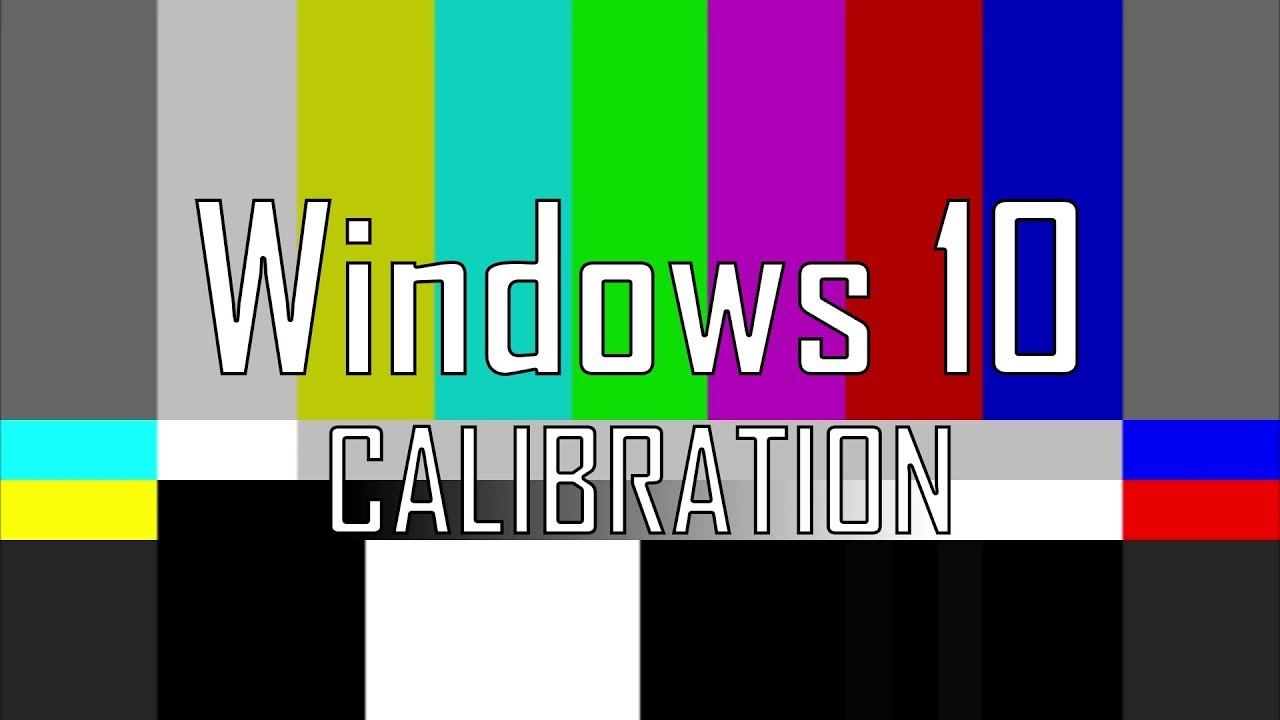
Have you ever noticed that photos look different on your monitor compared to your phone? Or that colors in games or videos just don’t seem quite right? That’s usually because your monitor isn’t calibrated. Just like tuning a musical instrument, your screen needs calibration to show colors accurately, whites as true white, and blacks deep and rich—not gray or washed out. This matters a lot for graphic designers, photographers, video editors, and even casual users who want their display to look its best. An uncalibrated monitor can cause inaccurate colors, poor contrast, and even eye strain over time.
During monitor calibration, Outbyte Driver Updater can verify graphics and display drivers so Windows presents the adjustments correctly.
I’ve spent many hours fine-tuning displays for photo editing, and trust me, a well-calibrated monitor makes a world of difference in how images and videos appear. While professional hardware calibrators deliver the highest precision, Windows offers a built-in Color Calibration tool that can improve your monitor’s accuracy substantially—and for free.
This guide will walk you through the step-by-step process of using Windows’ native tool to calibrate your monitor, helping you get a consistent, true-to-life display.
Why Calibrate Your Monitor?
- Accurate Color Representation: See colors as they truly are—crucial for creative work.
- Better Contrast: Reveal details in shadows and highlights.
- Correct Brightness: Avoid eye strain and keep images from looking washed out or too dark.
- Consistency: Ensure colors match across devices and printouts.
- Enhanced Viewing: Improve everyday visual experience for movies, games, and browsing.
Before You Begin: Preparation is Key
A bit of prep goes a long way toward a successful calibration.
Shopping ad

- SPECIFICATIONS: Monitor calibration colorimeter with Easy 1 2 3 software workflow, USB C connection, compact body approx. 34mm tall x 37mm diameter, adjustable counterweight for screen placement, supports up to 2 displays, brightness target selection including Native or Photo with before and after check.
- EASY SETUP: Guided 1 2 3 workflow makes calibration fast and approachable, helping photographers and creators achieve more accurate color without complicated settings, so you can edit with confidence and trust what you see on screen.
- COLOR ACCURACY: Corrects common monitor color shifts to deliver truer tones and more reliable contrast, improving consistency across editing sessions and helping your images look closer to final output on other screens and devices.
- DUAL DISPLAY SUPPORT: Calibrates up to 2 monitors for matching color across a multi screen workspace, ideal for photo editing, video work, and creative setups where consistent viewing on both displays matters.
- BEFORE AFTER CHECK: Built in comparison view lets you instantly see the difference after calibration, making it easy to confirm improved accuracy and maintain consistent results by repeating the process on a regular schedule.
- Warm Up Your Monitor: Turn it on for at least 30 minutes beforehand so it reaches stable operating temperature—colors and brightness can shift slightly when cold.
- Clean Your Screen: Dust or smudges can trick your eyes. Use a microfiber cloth to gently clean the display.
- Set Optimal Lighting: Calibrate in the light conditions you usually work in. Avoid direct sunlight or harsh artificial light on the screen. A dim, consistent, indirect light is ideal.
- Set Native Resolution: Make sure your monitor is at its native resolution (check Display settings > Display resolution) for the sharpest image.
- Reset Monitor Settings (Optional): If your monitor has physical buttons for brightness, contrast, or color modes, consider resetting to factory defaults to start neutral.
Step 1: Access the Color Calibration Tool
There are a couple of ways to open Windows’ Color Calibration wizard:
- Search Bar (Recommended):
- Click Start or press the Windows key.
- Type “Calibrate display color.”
- Click the result “Calibrate display color.”
- Control Panel:
- Open Control Panel.
- Set View by to “Large icons” or “Small icons.”
- Click “Color Management.”
- Go to the “Advanced” tab.
- Click “Calibrate display” under “Display Calibration.”
Step 2: Navigate the Display Color Calibration Wizard
Recommended Free Tools
Shopping ad

- ACHIEVE TRUE COLOR - Ensures your monitor displays colors accurately, critical for photography, design, and video editing, with unlimited gamma, whitepoint, and brightness settings. Standard Calibration provides professional-grade results in 90 seconds, or New Deeper Calibration measures more points across the grayscale for an average 30%+ accuracy improvement (varies by display).
- OPTIMIZE DISPLAY PERFORMANCE - Calibrate a wide range of backlight types including Wide LED, Standard LED, OLED, QD-OLED, Apple Liquid Retina XDR, and Mini LED, with support for brightness up to 12,000 nits, ensuring consistent and accurate color across all your screens.
- ENHANCE WORKFLOW EFFICIENCY - Projector Calibration feature allows for accurate color representation during presentations, while Display Analysis/MQA provides comprehensive screen quality assessment. Export 3D LUTs (.cube) for compatible video monitors, with support for Rec.709, Rec.2020, and DCI-P3.
- WIDE DEVICE COMPATIBILITY - Supports unlimited number of displays (per computer capability) and offers native USB-C connection plus an included USB-A adapter, ensuring seamless connectivity with modern laptops and desktop computers for streamlined use. StudioMatch and SpyderTune keep color consistent across multi-monitor setups.
- USER-FRIENDLY SOFTWARE - Features an intuitive interface supporting 10 languages, including English, Spanish, French, German, Chinese and Japanese, making calibration accessible to a global audience. Existing SpyderPro users upgrade to the new software free.
The wizard guides you through each adjustment step. Click Next to start.
- The first screen introduces calibration basics. Click Next.
- The second explains color concepts. Read through, then Next again.
Step 3: Set Basic Color Settings
If your monitor has physical controls:
- Use the On-Screen Display (OSD) buttons to open the monitor’s settings menu.
- Choose a neutral color mode like “Standard” or “sRGB.” Avoid modes like “Dynamic Contrast” that auto-adjust and interfere with calibration.
- Click Next in the wizard.
Step 4: Adjust Gamma
Gamma affects the brightness of mid-tones, balancing light and shadow.
Shopping ad

- SPECIFICATIONS; Includes Calibrite Display 123 colorimeter for monitor calibration plus ColorChecker Passport Video 2 for video and photo capture control, designed for exposure reference, white balance setup, and consistent color workflow from capture through edit.
- CAPTURE CONTROL; Passport Video 2 helps set accurate white point, verify exposure, and match multiple cameras on set, giving filmmakers and hybrid shooters a reliable reference for consistent footage in changing or mixed lighting conditions.
- MONITOR CALIBRATION; Display 123 provides an easy monitor profiling workflow so photographers and creators can trust on-screen color when editing, grading, designing, or delivering work that must remain consistent across displays.
- CREATIVE CONFIDENCE; Built for content creators who want dependable color management, this kit reduces trial-and-error corrections, improves workflow efficiency, and supports accurate results for both still photography and professional video production.
- PRO CREATOR WORKFLOW; Ideal for videographers and photographers who require consistent color standards across multiple cameras, monitors, and software platforms, helping maintain professional results from on-set capture through final post-production.
- The wizard shows circles with small dots.
- Adjust gamma so the dots blend seamlessly into the background—the inner circle should disappear.
- Use your monitor’s gamma control if available, otherwise use the wizard’s slider.
- Click Next.
Step 5: Adjust Brightness
Controls overall screen light output.
- An image with an X-ray suit on black background appears.
- Adjust brightness so you can just see the X-ray details, while the background remains deep black, not gray.
- Click Next.
Step 6: Adjust Contrast
Determines the difference between whites and blacks.
- The wizard shows a white shirt on a white background.
- Adjust contrast so you see all folds and wrinkles clearly, while keeping the background pure white without glare.
- Click Next.
Step 7: Adjust Color Balance
Ensures neutral grays and whites have no color tint.
Quick wins for a faster PC:
Clear out junk files and repair common Windows errorsFree Scan →Scan for outdated or missing drivers - takes under a minuteDriver Scan →Repair Windows errors before they cause bigger problemsFix Now →Shopping ad

- SPECIFICATIONS; Includes Calibrite Display Plus HL colorimeter measuring up to 10,000 nits plus ColorChecker Passport Video 2 for capture reference, designed for monitor calibration, white balance setup, exposure control, camera matching, and consistent color workflow.
- CAPTURE ACCURACY; Passport Video 2 helps set correct white point, verify exposure, and match cameras on set, delivering reliable reference for consistent footage and stills in changing or mixed lighting conditions.
- HIGH LUMINANCE CALIBRATION; Display Plus HL profiles mini-LED, OLED, and Apple XDR panels with extreme brightness capability, ensuring accurate color representation for professional photo editing and video grading workflows.
- EDITING CONFIDENCE; Built for creators who demand trustworthy color management, this kit reduces trial-and-error corrections, improves workflow efficiency, and supports accurate results from capture through final delivery.
- PRO CREATOR WORKFLOW; Ideal for videographers and photographers who require consistent color standards across multiple cameras, monitors, and software platforms, helping maintain professional results from on-set capture through final post-production.
- The wizard provides sliders for Red, Green, and Blue.
- Adjust each until the gray bars appear neutral, without reddish, greenish, or bluish casts.
- Click Next.
Step 8: Complete Calibration and Compare
- Compare your previous calibration to the current one by toggling buttons.
- If happy with the results, click Finish. Otherwise, go back and tweak.
Step 9: ClearType Tuner (Optional but Recommended)
After calibration, Windows offers to run the ClearType Text Tuner to improve text readability.
- Check “Start ClearType Tuner” and click Finish.
- Follow prompts selecting the clearest text samples for your eyes.
- Finish the tuner to improve font sharpness.
Maintaining Your Calibration
- Recalibrate if lighting changes significantly or you move your monitor.
- Monitors drift over time—consider recalibrating every few months or yearly.
- Graphics driver updates can reset color profiles, so recalibrate if your display looks off after updates.
Limitations of Software Calibration
While the Windows tool is great for many users, it has limits:
Shopping ad

- QUICK & EASY COLOR CALIBRATOR: Whether you're editing photos, designing graphics, or producing content, SpyderExpress helps you view colors with precision and confidence; Ideal for creators who want accurate, lifelike colour in both digital and print
- READY FOR THE LATEST DISPLAYS: The only calibrator of its kind to currently support the latest Liquid Retina XDR displays, including the MacBook M4 mini-LED screen, alongside everyday monitors; Upgrade the software for OLED and advanced mini-LED support
- 3x FASTER THAN TYPICAL ENTRY-LEVEL TOOLS: Get edit-ready color in just 90 seconds - see skin tones, shadows, and highlights as they’re meant to be, with consistent, trustworthy results
- GROW YOUR TOOLKIT WITH SOFTWARE UPGRADES: Unlock advanced features like ambient light adjustment, multi-display profiling, and DevicePreview - shows how your work will appear across different devices; No new hardware needed, upgrade when you're ready
- REAL COLOUR, REAL EASY: Download the software, plug in the device, and follow the 3 simple steps. Save profiles, calibrate up to 3-connected displays per workstation, and recalibrate before editing to ensure your screen always shows true-to-life color
- It relies on your eyes, which can be affected by lighting, fatigue, or color vision differences.
- It adjusts mostly software settings and can’t fix hardware issues like uneven backlighting or limited color range.
- It doesn’t create the detailed ICC profiles professional calibrators generate.
For top-tier accuracy—critical in photography or video work—a hardware calibrator like X-Rite or Datacolor Spyder is ideal. These devices measure your screen directly, removing guesswork.
For most users though, Windows’ built-in calibration tool is a fantastic free option. Taking a little time to calibrate your monitor will reward you with richer colors, better contrast, and a much more comfortable viewing experience.
Quick Recap
Product prices and availability are accurate as of the date/time indicated and are subject to change. Any price and availability information displayed on Amazon at the time of purchase will apply.
Independent reader supportYour contribution helps us test, update, and keep practical guides available for everyone.