Inferse is reader-supported. When you buy through links on our site, we may earn an affiliate commission. As an Amazon Associate I earn from qualifying purchases. Learn more
Cloning your SSD might sound like a task reserved for IT professionals, but it’s a common and practical solution for everyday users. Whether you’re upgrading your storage or just trying to avoid the pain of reinstalling everything from scratch, learning how to clone SSD to larger SSD can save you time, money, and hassle. Let’s get started.
What You Need for SSD Clone
Before you dive into the process of cloning your SSD, it’s crucial to get your tools and setup in order. Go through the checklist below:
- Target SSD:Ensure your motherboard supports the form factor (5″ or M.2) and interface (SATA vs. NVMe) of the new SSD.
- Adapter or Enclosure:If there is no spare hard drive bay or M.2 slot inside your computer, you’ll need a SATA-to-USB adapter or NVMe USB enclosure to connect the target SSD.
- Screwdrivers:You’ll need it to open your computer to swap drives.
- SSD Cloning Software:Here I’d like to recommend a specialized cloning software – AOMEI Cloner.
Learn how AOMEI Cloner can help with the SSD clone task below:
Do these 3 things before closing this tab:
1Scan for outdated or missing drivers - takes under a minute2Repair Windows errors before they cause bigger problems3Fix the driver behind crashes, sound loss and screen glitches✅Intuitive & User-Friendly Interface: Designed for both beginners and advanced users, AOMEI Cloner provides a clear, step-by-step guide for all cloning tasks.
Shopping ad

- Get NVMe solid state performance with up to 1050MB/s read and 1000MB/s write speeds in a portable, high-capacity drive(1) (Based on internal testing; performance may be lower depending on host device & other factors. 1MB=1,000,000 bytes.)
- Up to 3-meter drop protection and IP65 water and dust resistance mean this tough drive can take a beating(3) (Previously rated for 2-meter drop protection and IP55 rating. Now qualified for the higher, stated specs.)
- Use the handy carabiner loop to secure it to your belt loop or backpack for extra peace of mind.
- Help keep private content private with the included password protection featuring 256‐bit AES hardware encryption.(3)
- Easily manage files and automatically free up space with the SanDisk Memory Zone app.(5). Non-Operating Temperature -20°C to 85°C
✅Multiple Cloning Types: Migrate your OS to a new SSD/HDD via System Clone, transfer everything from one hard drive to another via Disk Clone, or copy only the necessary partitions via Partition Clone.
✅Smart Clone Technology: Selectively copy only utilized disk sectors, significantly improving transfer efficiency and reducing completion time.
✅Wide Compatibility: It works with major SSD brands (Samsung, WD, Crucial, Kingston, and more) and supports multiple storage types (HDDs, SSDs, NVMe, USB drives, and even dynamic disks).
Shopping ad

- MEET THE NEXT GEN: Consider this a cheat code; Our Samsung 990 PRO Gen4 SSD helps you reach near max performance with lightning-fast speeds; Whether you’re a hardcore gamer or a tech guru, you’ll get power efficiency built for the final boss
- REACH THE NEXT LEVEL: Gen4 steps up with faster transfer speeds and high-performance bandwidth; With a more than 55% improvement in random performance compared to 980 PRO, it’s here for heavy computing and faster loading
- THE FASTEST SSD FROM THE WORLD'S FLASH MEMORY BRAND: The speed you need for any occasion; With read and write speeds up to 7450/6900 MB/s you’ll reach near max performance of PCIe 4.0 powering through for any use
- PLAY WITHOUT LIMITS: Give yourself some space with storage capacities from 1TB to 4TB; Sync all your saves and reign supreme in gaming, video editing, data analysis and more
- IT’S A POWER MOVE: Save the power for your performance; Get power efficiency all while experiencing up to 50% improved performance per watt over the 980 PRO; It makes every move more effective with less consumption
How to Clone SSD to Larger SSD (Step-by-Step Instructions)
Cloning your SSD with AOMEI Cloner is one of the simplest and safest ways to upgrade your storage without reinstalling your OS or apps. Here’s how to do it in just a few straightforward steps.
💡Tip: Make sure the new SSD is connected to your computer via SATA, M.2, or a USB adapter before starting.
Step 1. Download AOMEI Cloner now from their official website. Follow the on-screen instructions to install AOMEI Cloner and open it.
Shopping ad

- THE SSD ALL-STAR: The latest 870 EVO has indisputable performance, reliability and compatibility built upon Samsung's pioneering technology.Computer Platform:PC.Encryption : Class 0 (AES 256) TCG/Opal v2.0, MS eDrive (IEEE1667), Environmental Specs - Shock : 1,500 G & 0.5 ms (Half sine).
- EXCELLENCE IN PERFORMANCE: Enjoy professional level SSD performance with 870 EVO, which maximizes the SATA interface limit to 560/530 MB/s sequential speeds, Accelerates write speeds and maintains long term high performance with a larger variable buffer
- INDUSTRY DEFINING RELIABILITY: Meet the demands of every task from everyday computing to 8K video processing, with up to 2,400 TBW
- MORE COMPATIBLE THAN EVER: 870 EVO has been compatibility tested for major host systems and applications, including chipsets, motherboards, NAS, and video recording devices. Interface- SATA 6GB/s, compatible with SATA 3GB/s and SATA 1.5GB/s interfaces
Step 2. Select “Clone” from the left-hand menu. Then click “Disk Clone” to create a complete copy of your drive, including the OS, applications, and all data files.
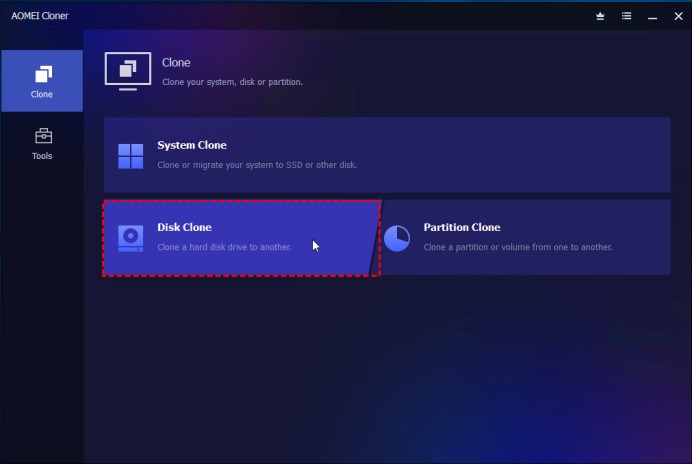
Step 3. In the list of available drives, select your current SSD (the one you’re replacing) as the source disk. Click Next.
Step 4. Choose your new, larger SSD as the destination disk and click Next. AOMEI will warn you that the destination drive will be overwritten—click OK if you’re sure.
Shopping ad

- Solid state performance with up to 800MB/s read speeds in a portable drive. (Based on internal testing; performance may be lower depending on host device, interface, usage conditions and other factors. 1MB=1,000,000 bytes.)
- Back up your content and memories on a storage solution that fits seamlessly into your mobile lifestyle.
- Take it with you on your adventures—up to two-meter drop protection means this durable drive can take a beating. (Based on internal testing.)
- Secure it to your belt loop or backpack for extra peace of mind thanks to the tough rubber hook.
- From Sandisk, a brand professional photographers trust to take on assignments.
⚠️ Note: If there’s data on the new SSD, it will be erased. Back it up if needed.
Step 5. To take advantage of the extra space on the larger SSD, click “Edit Partitions”, then choose “Add unused space to all partitions” or “Manually adjust partition size”.
Recommended Free Tools
Step 6. Check the “SSD Alignment” box at the bottom. This improves performance and extends the life of your SSD by properly aligning partitions.
Shopping ad

- HUGE SPEED BOOST: Get random read/write speeds that are 40%/55% faster than 980 PRO; Experience up to 1400K/1550K IOPS, while sequential read/write speeds up to 7,450/6,900 MB/s reach near the max performance of PCIe 4.0*
- BREAKTHROUGH POWER EFFICIENCY: Use less power and get more performance; Enjoy up to 50% improved performance per watt over 980 PRO, plus optimal power efficiency with max PCIe 4.0 performance**
- SMART THERMAL CONTROL: Samsung's own nickel-coated controller delivers effective thermal control; With its slim size, 990 PRO is a perfect fit for desktops and laptops that meet the PCI-SIG D8 standard***
- THE CHAMPION MAKER: Up to 65% improvement in random performance enables faster loads for an ultimate gaming experience on PS5 and DirectStorage PC games****
- SAMSUNG MAGICIAN SOFTWARE: Get the most out of your SSD with Samsung Magician's advanced yet intuitive optimization tools; Monitor drive health, protect valuable data, and receive important updates for your 990 PRO
Step 7. Double-check your selections. Click “Start Clone” to begin the operation.
Step 8. Physically swap the SSDs and boot.
- Once cloning is complete, shut down your computer.
- Remove the existing SSD from its bay, then securely install the cloned drive in the same location.
- Power on the system. It should boot from the new, larger SSD without issue.
👉 If your system doesn’t boot: Enter BIOS/UEFI and make sure the new SSD is set as the primary boot device.
Post-Cloning Tips
- Verify the clone
Check that all files and partitions copied correctly.
- Optimize the new SSD
- Enable TRIM (if not automatically enabled)
- Verify AHCI mode is enabled in BIOS
- Update drivers if needed
- Handle the old drive
- Securely wipe if repurposing or disposing
- Keep as backup until you’re certain the new drive works perfectly
Summary
Upgrading to a larger SSD is a smart move when you’re running out of space or want better performance—and cloning your current SSD makes the process seamless. With tools like AOMEI Cloner, you can clone your entire drive—including your OS, apps, and files—without reinstalling anything. Follow this guide to safely clone SSD to larger SSD and enjoy a faster, roomier system without losing a single file.
Quick Recap
Product prices and availability are accurate as of the date/time indicated and are subject to change. Any price and availability information displayed on Amazon at the time of purchase will apply.